
View the change history of a consumer
Consumer history lists every change made to a consumer record, with the date and the old and new values.
ℹ️ Consumer history is available to users with the Admin, Editor or Agent role.
Show the History column
-
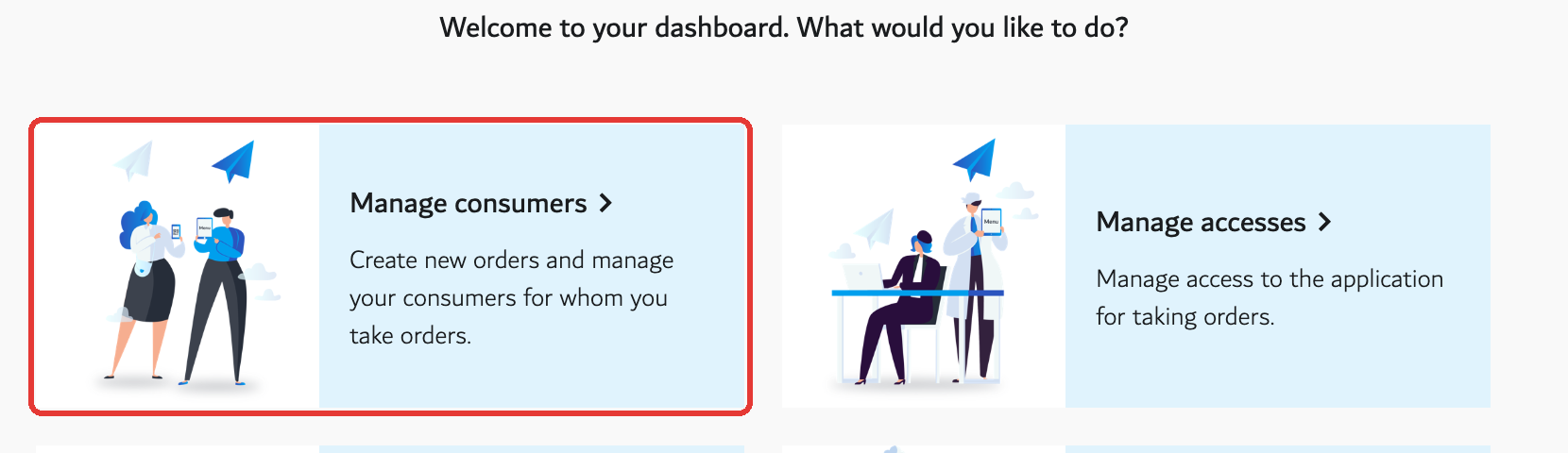
Go to Manage > Consumers.
- Above the table, in the Columns bar, click History so that it is highlighted.

- Click Save my choice. The column now stays in the table on future visits.
Open the history of a consumer
- In the consumers table, find the consumer.
-
Click the clock icon in the History column.
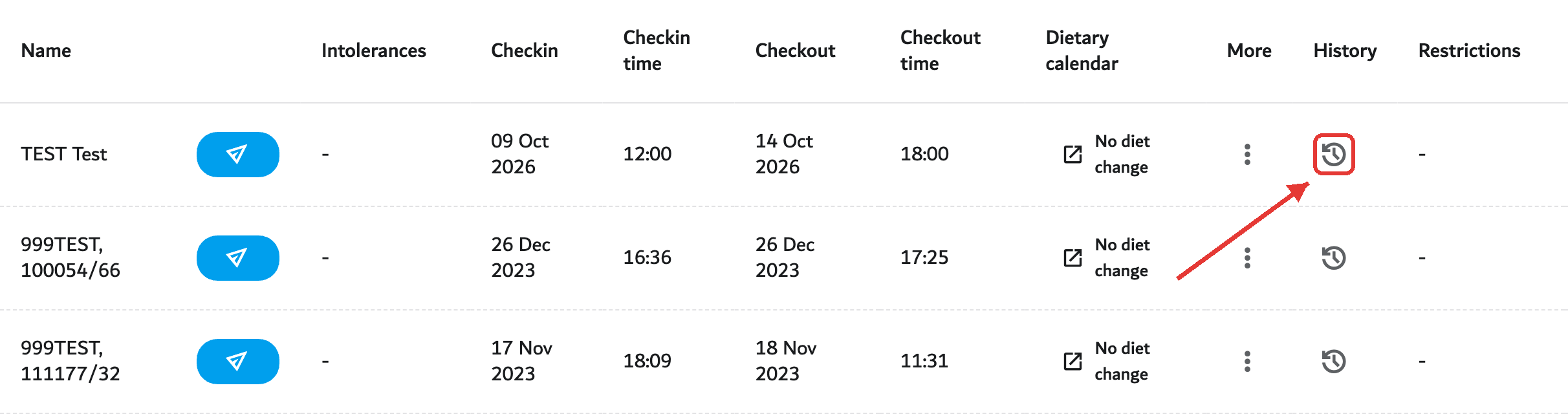
- The page Change history for followed by the consumer's name opens.


- Click Back to consumers to return to the list.
What the history shows
Entries are grouped by day and sorted from newest to oldest. Each entry is a card with the following information.
| Element | What it shows |
|---|---|
| Action | What happened: Create, Update or Delete. |
| Date and time | When the change was saved, down to the second. |
| Application | The part of Menutech where the change was made, for example Meal planning, Order taking, KDS, Service or Admin. |
| Who | User when a person made the change; Machine when an automatic process made it, such as an import or a connection with another system. |
| Show changes | Opens the list of modified fields. Click Hide changes to close it. |
| Old and new values | Each modified field is listed by name. The old value appears on a line starting with "-", and the new value on a line starting with "+". A dash means the value was empty. |
Changes to diet schedules appear in the same list. The history only shows fields that are active for the organisation. A field that is switched off, such as birthdays, is not displayed.
Events from a connected system
Organisations connected to a patient system can also see the messages received from it, for example an admission or a discharge. These are called events.
- Use the buttons All, Changes and Events at the top of the page to choose what is displayed. The buttons only appear when the consumer has events.
- Click Show details on an event to see identifiers such as the Patient ID and the Visit ID.
- A New visit marker indicates that the consumer was linked to a new stay.
Who can see it
Users with the Admin, Editor or Agent role can open the history. Read-only accounts and consumers cannot.
Good to know
- The history is read-only; entries cannot be edited or deleted.
- Changes appear once the record is saved.
- There is no search or export.
- If nothing was recorded, the page shows "No history entries found."
- If the history cannot be loaded, a message asks to try again in a moment.