
Creating and customizing declarations (allergens, additives, and labels)
Custom declarations let users rename existing allergens, additives, and labels, and adjust their icon, legend text, symbol, color, and import code, directly from account settings, without contacting support.
ℹ️ This feature is available to users with the Enterprise subscription.
A Custom declarations option appears under the Manage menu.
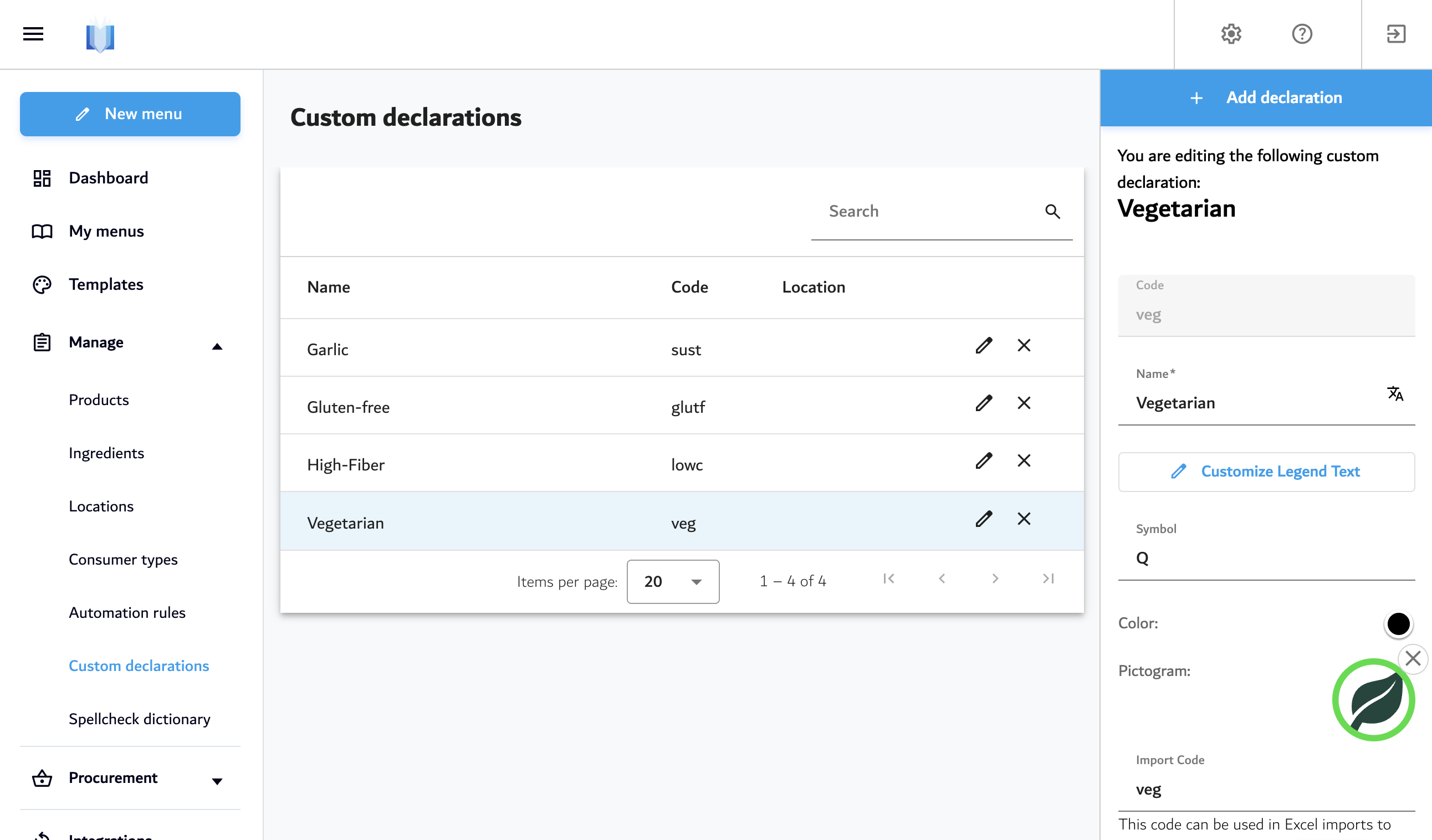
What can be customized?
For each existing declaration, users can:
- Rename the declaration, for any supported menu language
- Upload a custom icon (SVG) to replace the default pictogram
- Edit the legend text shown in the menu, for any supported menu language
- Set a symbol, used when the declaration style is set to Symbol (character, superscript, or subscript) in the menu styling options
- Set a color, used when the declaration style is set to Color in the menu styling options
- Set a custom import code, used to reference the declaration in Excel menu imports
Where can allergens, labels and additives be customized?
- Go to Manage > Custom declarations.
- Find the declaration to edit, using the search field if needed.
- Click the pencil icon next to the declaration's name.
- Make the desired changes in the panel that opens on the right (see sections below).
- Changes save automatically; a Change history section at the bottom of the panel keeps a record of prior edits.
Setting the name and legend text
Each declaration has two separate name fields:
- Name: the declaration's identifier, shown in filters, lists, and menu-builder options. It's required, and users typically keep this short (e.g. "Gluten").
- Legend: optional; if filled in, this text is used in the menu's legend instead of the Name. This is where users typically put the full legal wording (e.g. "Contains traces of gluten"), keeping the shorter Name for use elsewhere.
Both fields support translation into any supported menu language via the translate icon next to each field.
Uploading a custom icon
The Pictogram field shows the current icon. Users can upload their own SVG icon to replace it. This icon is used wherever the declaration style is set to display an icon in the menu.
Setting a symbol
The Symbol field accepts a single character. It is used when the declaration style is set to Symbol in the menu styling options, and can be displayed as a plain character, superscript, or subscript.
Setting a color
The Color field opens a color picker. It is used when the declaration style is set to Color in the menu styling options.
Setting an import code
The Import Code field lets users assign a custom code to the declaration, for use when importing menu content via Excel. The default code is pre-filled but can be overwritten.